You can choose site template or site definition for customization based on the complexity. If you have small changes, just change the look of few pages then you can go for site template.
If you have to create new content types, web parts definition and major change in site structure then you should create a site definition.
Advantages of Site Definition
- Files are stored in Web server, So performance will improve.
- We can do complex changes by editing schema.xml file
- Certain type of changes require site definition for introducing new file types,
defining view styles or modifying the Edit menu
Disadvantages of Site Definition
- more effor is required to customize site definition
- Editing Site Definition after deploying is difficult.
- Cannot apply theme through Site Definition
- User cannot create two lists of the same type.
Advantages of Site Template
- Easy to create and deploy
- Can make changes to site template, will not affect existing site
Disadvantages of Site Template
- Not suitable for large scale websites
- If there is no Base Site Definition for the Site Template, site template will not work.
Friday, May 30, 2008


Thursday, May 29, 2008
Enable Error Messages
You can turn off friendly error messages for the sharepoint websites. It will be helpfull at the time of development. Follow the steps to enable error message.
1. Open the web.config file from the below Url
C:\Inetpub\wwwroot\wss\VirtualDirectories\80
2. Set the "CallStack" value to "true"
<SafeMode CallStack="true" ... >
3. Set customErrors mode to "Off"
<customErrors mode="Off" >
4. Save and Close the web.config file.
1. Open the web.config file from the below Url
C:\Inetpub\wwwroot\wss\VirtualDirectories\80
2. Set the "CallStack" value to "true"
<SafeMode CallStack="true" ... >
3. Set customErrors mode to "Off"
<customErrors mode="Off" >
4. Save and Close the web.config file.
Feature Stapling - What is it?
Feature Stapling allows you to "staple" a Feature to a site definition, so that the Feature is automatically activated whenever a new site is provisioned. This means you can add your feature to all sites created using that site definition.
This helps to add functianality to Site Definitions without having to modify Site Definitions.
This helps to add functianality to Site Definitions without having to modify Site Definitions.
Visual Studio extensions for SharePoint – Developer User Guide
Microsoft has released User Guide, Samples and Walkthroughs for the Visual Studio 2005 extensions for Windows SharePoint Services 3.0, v1.1.
The user guide is downloadable from here
The user guide is downloadable from here
Planning and architecture for Windows SharePoint Services 3.0 technology
If you want to know more about planning and architecture for WSS 3.0, please visit the following link.
http://technet.microsoft.com/en-us/library/cc288426(TechNet.10).aspx
In this you can learn about,
Determine organization and user needs (Windows SharePoint Services)
Planning worksheets for Windows SharePoint Services 3.0
Plan Web site structure and publishing (Windows SharePoint Services)
Plan for content and search (Windows SharePoint Services)
Plan site and content security (Windows SharePoint Services)
Plan communication (Windows SharePoint Services)
Plan for site creation and maintenance (Windows SharePoint Services)
Plan for system requirements (Windows SharePoint Services)
Design server farms and topologies (Windows SharePoint Services)
Design logical architecture (Windows SharePoint Services)
Plan for authentication (Windows SharePoint Services)
Plan for and design security (Windows SharePoint Services)
Plan for performance and capacity (Windows SharePoint Services)
Planning and architecture for Windows SharePoint Services 3.0 technology summary
Downloadable book: Planning an Extranet Environment for Windows SharePoint Services
Plan for data protection and recovery (Windows SharePoint Services)
You can also download this from the below mentioned Url
Downloadable book: Planning and architecture for Windows SharePoint Services 3.0 technology
http://technet.microsoft.com/en-us/library/cc288426(TechNet.10).aspx
In this you can learn about,
Determine organization and user needs (Windows SharePoint Services)
Planning worksheets for Windows SharePoint Services 3.0
Plan Web site structure and publishing (Windows SharePoint Services)
Plan for content and search (Windows SharePoint Services)
Plan site and content security (Windows SharePoint Services)
Plan communication (Windows SharePoint Services)
Plan for site creation and maintenance (Windows SharePoint Services)
Plan for system requirements (Windows SharePoint Services)
Design server farms and topologies (Windows SharePoint Services)
Design logical architecture (Windows SharePoint Services)
Plan for authentication (Windows SharePoint Services)
Plan for and design security (Windows SharePoint Services)
Plan for performance and capacity (Windows SharePoint Services)
Planning and architecture for Windows SharePoint Services 3.0 technology summary
Downloadable book: Planning an Extranet Environment for Windows SharePoint Services
Plan for data protection and recovery (Windows SharePoint Services)
You can also download this from the below mentioned Url
Downloadable book: Planning and architecture for Windows SharePoint Services 3.0 technology
Wednesday, May 28, 2008
Using Formulas in Calculated Columns
Calculated Column is great feature of SharePoint 2007. Calculated columns are used in lists and Document Libraries. We can use formulas in Calculated Columns to manipulate and display the data in different formats.
Formulas can be categorised into 4 types:
1. Conditional Formulas
2. Date & Time Formulas
3. Mathemetical Formulas
4. Text Formulas
1. Conditional Formulas : we can use these formulas to test the condition of a statement and return a YES or NO value, to return blank value to represent null value.
Example,Check if a number is greater than or less than another number
=[Column1]>[Column2]
=IF([Column1]<=[Column2], "OK", "Not OK")
2.Date and time formulas: We can use these formulas to perform calculations that are based on dates and times, such as adding a number of days, months, or years to a date, calculating the difference between two dates, and converting time to a decimal value.
Note:When you manipulate dates, the return type of the calculated column must be set to Date and Time.
Example,To add a number of days to a date, use the addition (+) operator.
=[Column1]+[Column2]
Adds 3 days to 6/9/2007.Column1 value = 6/9/2007, Column2 value = 3, Result = 6/12/2007
3.Mathematical formulas: We can use these formulas to perform a variety of mathematical calculations, such as adding, subtracting, multiplying, and dividing numbers, calculating the average or median of numbers, rounding a number, and counting values.
Example,To add numbers in two or more columns in a row, use the addition operator (+) or the SUM function.
=[Column1]+[Column2]+[Column3]
4.Text formulas: We can use these formulas to manipulate text, such as combining or concatenating the values from multiple columns, comparing the contents of columns, removing characters or spaces, and repeating characters.
Example,To change the case of text, use the UPPER function.
=UPPER([Column1])
For more reference Click Here
Creating a Site Column and adding it to ContentType using Object Model
Here is an example, how to create a Site Column and add the Site Column to a Content Type.
public SPField AddField(string fieldDisplayName, SPFieldType fieldType, bool bRequired)
{
SPField field = null;
try
{
// get the parent web
SPWeb web = contentType.ParentWeb;
string fieldName = web.Fields.Add(fieldDisplayName, fieldType, bRequired);
web.Fields[fieldDisplayName].Group = "My Site Columns";
web.Fields[fieldDisplayName].Update(true);
field = web.Fields[fieldDisplayName];
// add a field link to the content type
contentType.FieldLinks.Add(new SPFieldLink(field));
contentType.FieldLinks[fieldDisplayName].Required = bRequired;
contentType.Update(true);
}
catch
{ }
return field;
}
public SPField AddField(string fieldDisplayName, SPFieldType fieldType, bool bRequired)
{
SPField field = null;
try
{
// get the parent web
SPWeb web = contentType.ParentWeb;
string fieldName = web.Fields.Add(fieldDisplayName, fieldType, bRequired);
web.Fields[fieldDisplayName].Group = "My Site Columns";
web.Fields[fieldDisplayName].Update(true);
field = web.Fields[fieldDisplayName];
// add a field link to the content type
contentType.FieldLinks.Add(new SPFieldLink(field));
contentType.FieldLinks[fieldDisplayName].Required = bRequired;
contentType.Update(true);
}
catch
{ }
return field;
}
Creating ContentType using Object Model
Here is an example, how to create an custom content type and add to custom group in Site Content Types.
SPContentType contentType = new SPContentType(
web.AvailableContentTypes["document"], web.ContentTypes,"sampleContentType");
contentType.Group = "My Content Types";
contentType.Description = "Creating Content Types using Object Model";
web.ContentTypes.Add(contentType);
SPContentType contentType = new SPContentType(
web.AvailableContentTypes["document"], web.ContentTypes,"sampleContentType");
contentType.Group = "My Content Types";
contentType.Description = "Creating Content Types using Object Model";
web.ContentTypes.Add(contentType);
Tuesday, May 27, 2008
SPSecurity.RunWithElevatedPrivileges Method
Executes set of code with Full Privilege even if the user does not having Full Privilege.
Define an anonymous method to implement. Example,
SPSecurity.RunWithElevatedPrivileges(delegate()
{
// Your Code
});
Define an anonymous method to implement. Example,
SPSecurity.RunWithElevatedPrivileges(delegate()
{
// Your Code
});
Adding Expiration Policy to SharePoint ContentType
In MOSS 2007, We can set expiration policy for a content type. For example, Document should be deleted(moved to recycle bin) from document library after certain number of days or We can associate a workflow to perform custom action.
We can achieve this in two ways
1. Using UI
Goto Site Settings > Galleries > Site Content Types
Select the ContentType for which you want to set the expiration policy and
Click 'Information Management Policy Settings'
Select the option 'Define a Policy' and Click OK, Following screen will appear.
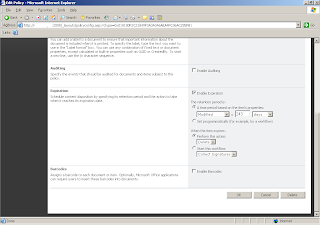
Goto 'Expiration' Section and select 'Enable Expiration' and set the time period and set the action ( what to do when item expires)
Add the ContentType to the Document Library. Add new documents to the library and bind it to our ContentType. When document expires, document will be moved to recycle bin.
2. Using Object Model (see the sample code below)
string policyFeatureId = "Microsoft.Office.RecordsManagement.PolicyFeatures.Expiration";
if (Policy.GetPolicy(contentType) == null)
{
//if the content type hasn't got a Policy yet, create a new Policy Policy.CreatePolicy(contentType, null);
}
Policy policyOfContentType = Policy.GetPolicy(contentType);
policyOfContentType.Name = "My Expiration Policy";
//Add expiration policy to the content type
if (policyOfContentType.Items[policyFeatureId] == null)
{
// Property value => 'Expiration' or 'Modified'
string customData =
@"<data><formula id=""Microsoft.Office.RecordsManagement.PolicyFeatures.Expiration.Formula.BuiltIn""><number>" + expirationDays;
customData += @"</number><property>Modified</property><period>days</period></formula>><action type=""action"" id=""Microsoft.Office.RecordsManagement.PolicyFeatures.Expiration.Action.MoveToRecycleBin"" /></data>";
policyOfContentType.Items.Add(policyFeatureId, customData);
}
Note : we cannot add expiration policy to the core content types.
We can achieve this in two ways
1. Using UI
Goto Site Settings > Galleries > Site Content Types
Select the ContentType for which you want to set the expiration policy and
Click 'Information Management Policy Settings'
Select the option 'Define a Policy' and Click OK, Following screen will appear.

Goto 'Expiration' Section and select 'Enable Expiration' and set the time period and set the action ( what to do when item expires)
Add the ContentType to the Document Library. Add new documents to the library and bind it to our ContentType. When document expires, document will be moved to recycle bin.
2. Using Object Model (see the sample code below)
string policyFeatureId = "Microsoft.Office.RecordsManagement.PolicyFeatures.Expiration";
if (Policy.GetPolicy(contentType) == null)
{
//if the content type hasn't got a Policy yet, create a new Policy Policy.CreatePolicy(contentType, null);
}
Policy policyOfContentType = Policy.GetPolicy(contentType);
policyOfContentType.Name = "My Expiration Policy";
//Add expiration policy to the content type
if (policyOfContentType.Items[policyFeatureId] == null)
{
// Property value => 'Expiration' or 'Modified'
string customData =
@"<data><formula id=""Microsoft.Office.RecordsManagement.PolicyFeatures.Expiration.Formula.BuiltIn""><number>" + expirationDays;
customData += @"</number><property>Modified</property><period>days</period></formula>><action type=""action"" id=""Microsoft.Office.RecordsManagement.PolicyFeatures.Expiration.Action.MoveToRecycleBin"" /></data>";
policyOfContentType.Items.Add(policyFeatureId, customData);
}
Note : we cannot add expiration policy to the core content types.
Monday, May 26, 2008
What's new in MOSS 2007
Office SharePoint Server 2007 introduces new technologies, including the following:
Business Data Catalog Enables integration between enterprise portal and line-of-business (LOB) applications.
Document Management Provides control, organization, publishing, offline capabilities, draft item security, rights management, and records management.
Web Content Management Enables site branding, creation of custom converters, building of multilingual sites, and building of content deployment solutions. Office SharePoint Server 2007
Excel Services Enables interaction with your spreadsheets (view, calculate, create snapshots, extract values) through a Web browser or programmatically through a Web service.
InfoPath Forms Services Enables interaction with form templates designed with Microsoft Office InfoPath 2007 through a Web browser.
Office SharePoint Server 2007 also brings enhancements to existing technologies, including the following:
Search Provides enhanced capabilities in portal sites, team sites, content management sites, and custom headless search applications.
User Profiles and Audience Targeting Provides improvements for property management, imports, privacy and security, and My Page, plus the addition of memberships, shared context, and colleagues quick links.
Single Sign-on Provides enhancements to include a pluggable mechanism to allow alternate single sign-on providers.
Business Data Catalog Enables integration between enterprise portal and line-of-business (LOB) applications.
Document Management Provides control, organization, publishing, offline capabilities, draft item security, rights management, and records management.
Web Content Management Enables site branding, creation of custom converters, building of multilingual sites, and building of content deployment solutions. Office SharePoint Server 2007
Excel Services Enables interaction with your spreadsheets (view, calculate, create snapshots, extract values) through a Web browser or programmatically through a Web service.
InfoPath Forms Services Enables interaction with form templates designed with Microsoft Office InfoPath 2007 through a Web browser.
Office SharePoint Server 2007 also brings enhancements to existing technologies, including the following:
Search Provides enhanced capabilities in portal sites, team sites, content management sites, and custom headless search applications.
User Profiles and Audience Targeting Provides improvements for property management, imports, privacy and security, and My Page, plus the addition of memberships, shared context, and colleagues quick links.
Single Sign-on Provides enhancements to include a pluggable mechanism to allow alternate single sign-on providers.
Subscribe to:
Posts (Atom)
